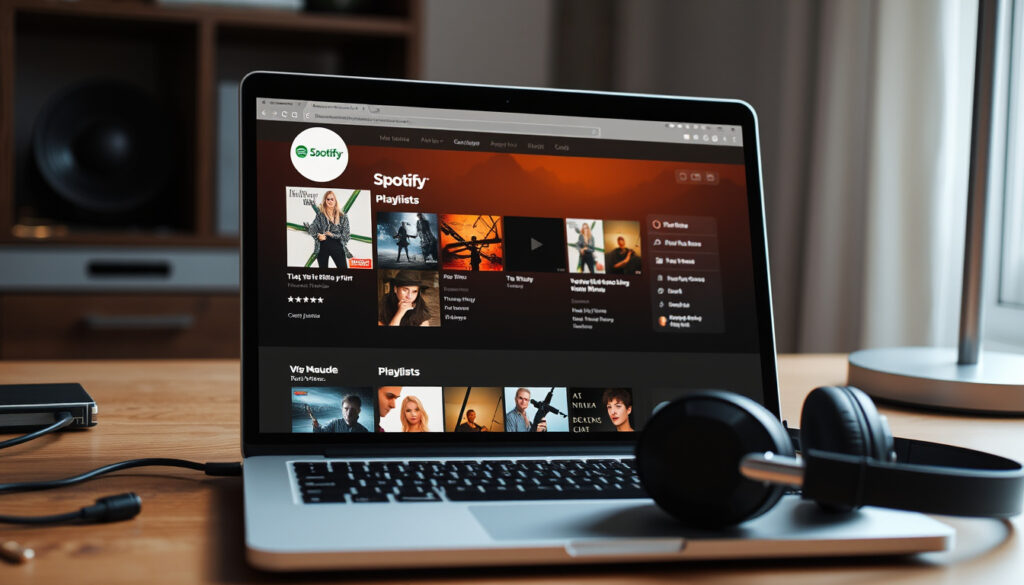
Spotify Web Player: Features, Benefits & How-To
The Spotify web player is a lightweight, browser-based streaming tool that requires no installation and works across devices, but users often trade flexibility and offline capability for convenience. Here’s what you need to know about its features, limitations, and how it compares to the desktop app.
Catalog size: Millions of songs ·
Access: No download required ·
Free tier skip limit: 6 per hour ·
Group Session (Listening Party): Available ·
Monthly active users (Spotify): Over 500 million
Quick snapshot
- Browser-based music streaming (Spotify Support – official device list)
- No download needed (Spotify Support – official device list)
- Access millions of songs (Spotify Support – official device list)
- Free with ads or Premium (Spotify Support – official device list)
- Personalized playlists (Spotify Web Player – official landing page)
- Listening Party (Group Session) (Spotify Web Player – official landing page)
- Queue management (Spotify Web Player – official landing page)
- Cross-platform sync (Spotify Web Player – official landing page)
- 6 skips per hour on Free (FreeYourMusic – guide to skip limits)
- No offline playback (FreeYourMusic – guide to skip limits)
- No background play on mobile web (FreeYourMusic – guide to skip limits)
- Limited audio quality settings (FreeYourMusic – guide to skip limits)
- Clear cache and cookies (YouTube – third-party troubleshooting guide)
- Disable ad blockers (YouTube – third-party troubleshooting guide)
- Update browser (YouTube – third-party troubleshooting guide)
- Check internet connection (YouTube – third-party troubleshooting guide)
Four key facts about the web player, sourced directly from Spotify’s official documentation:
The table shows a snapshot of core attributes across access, platform, and free-tier limitations.
| Detail | Value |
|---|---|
| Official site | open.spotify.com |
| Platform | Browser |
| Free tier skips per hour | 6 |
| Group session | Yes |
The pattern: the web player’s feature set is intentionally trimmed, offering fast entry at the cost of offline and high-fidelity options.
What is the Spotify web player?
The Spotify web player is a browser-based version of the music streaming service that gives you access to millions of songs without installing any software. You can use it at open.spotify.com on any modern browser. According to Spotify Support – official device list, the web player is a supported device category alongside the desktop and mobile apps.
How does the Spotify web player work?
- It streams audio directly through your browser using Widevine DRM or a media pack (Spotify Support – web player help page).
- No installation needed – just log in with your Spotify account.
- The interface mirrors the desktop app, with playlists, search, and your library.
The implication: the web player relies on browser-level encryption, which can fail if DRM components are missing or blocked.
What devices can run the Spotify web player?
- Any computer with a modern browser: Chrome, Edge, Firefox, or Safari (YouTube – third-party compatibility guide).
- Windows 10 N editions require a Media Feature Pack from Microsoft (Spotify Support – web player help).
- Some shared or public networks (schools, workplaces) may block access (Spotify Support – network restrictions).
The implication: the web player is designed for instant, low-friction access, but it depends on browser compatibility and network permissions. If you’re on a locked-down computer, you might be out of luck.
What are the benefits of Spotify web player?
The web player’s biggest advantage is convenience. Here’s what makes it stand out:
- No installation required – works on any browser instantly.
- Cross-device access – log in from any computer without syncing files.
- Lower storage usage – nothing to download.
- Group Session (Listening Party) feature – available on both free and Premium accounts (Spotify Web Player – official landing page).
- Same personalization as the app – your playlists, recommendations, and library sync automatically.
The trade-off: you trade some features for instant access. According to FreeYourMusic – web player guide, Spotify recommends at least 0.5 Mbps for streaming, and 1–2 Mbps for a smoother experience.
For users who jump between computers or want to avoid installing yet another app, the web player is a no-brainer. But if you need offline downloads or background play on mobile, you’ll hit the ceiling fast.
Why won’t Spotify web player play songs?
Playback issues are common, but most have simple fixes. Here are the most frequent causes and solutions, based on Spotify’s official troubleshooting page and third-party guides.
How to fix Spotify web player not playing
- Clear your browser cache and cookies (YouTube – troubleshooting guide).
- Disable ad blockers and privacy extensions (FreeYourMusic – extension interference).
- Update your browser to the latest version (Spotify Support – update browser).
- Open the player in a private/incognito window (Spotify Support – private window).
- Check your internet connection, or switch to a mobile hotspot (YouTube – network troubleshooting).
- Perform a hard refresh (Ctrl+F5 or Cmd+Shift+R) to force fresh resources (FreeYourMusic – hard refresh).
The pattern: most playback issues are rooted in browser configuration, not the Spotify service itself.
What causes playback issues?
- Browser cache or corrupted data.
- Ad blockers blocking DRM content.
- Outdated browser missing required codecs.
- Network restrictions (firewalls, proxy settings) (Spotify Support – network restrictions).
- Widevine DRM or media pack not installed (Spotify Support – DRM requirement).
The pattern: most problems come down to browser or network configuration. Spotify’s own advice is to try the desktop app if the web player still doesn’t work (Spotify Support – fallback to app).
Does the Spotify web player have unlimited skips?
No – not for free users. The skip limit is one of the most common frustrations. Here’s the official line:
What is the skip limit for free users?
- Free users: 6 skips per hour (FreeYourMusic – skip limit details).
- Premium users: unlimited skips.
The catch: if unlimited skips matter to you, the only legitimate solution is a Premium subscription. The web player enforces the same free-tier restrictions as the mobile app.
How to get around the skip limit?
- There is no official way to bypass the skip limit on the web player.
- Third-party tools or hacks are not endorsed and may violate Spotify’s terms of service.
- Some users report that switching to a private window or using a different browser can temporarily reset the counter, but this is not reliable.
Is Spotify web player better than the app?
It depends on what you value. The web player and the desktop app share the same core experience, but the desktop app has several exclusive features. Here’s a direct comparison based on Spotify’s official description and Spotify’s device support page.
Five differences, one pattern: the desktop app is a superset of the web player, with extra features for Premium users.
This table contrasts the two platforms across installation, offline capability, audio quality, and mobile behavior.
| Feature | Web Player | Desktop App |
|---|---|---|
| Installation | None (browser) | Required |
| Offline downloads | No | Yes (Premium only) |
| Audio quality settings | Limited (up to 160 kbps on Free, 320 kbps on Premium via browser) | Full control (up to 320 kbps with volume normalization) |
| Background play on mobile | No (browser stops when tab is inactive) | Yes (even when phone is locked) |
| Group Session | Yes | Yes |
| Cross-device sync | Yes | Yes |
| Updates | Automatic via browser | Manual updates |
Why this matters: the web player is a lean, no-commitment option. The desktop app is for power users who want offline access, higher audio quality, and background playback. The decision hinges on whether you need those extras.
Upsides
- Instant access without installation
- Works on any modern browser
- Same personalization and playlists
- Group Session available
Downsides
- No offline downloads
- Limited audio quality settings
- No background play on mobile web
- Free tier skip limit of 6 per hour
How to use the Spotify web player (step by step)
Getting started takes less than a minute. Here’s a quick walkthrough based on the official Spotify Web Player page.
- Open your browser and go to open.spotify.com.
- Click “Log in” and enter your Spotify credentials (or sign up for free).
- Browse or search for music, podcasts, or audiobooks.
- Click a song or playlist to start streaming.
- Use the queue button (bottom right) to add songs to your queue.
- To start a Group Session, click the speaker icon and select “Start a group session”.
- Adjust volume and skip tracks as needed (free users: 6 skips per hour).
The pattern: the web player is intentionally simple. No settings to tweak, no downloads to manage – just log in and play.
What we know and what’s unclear
Confirmed facts
- Spotify web player is free with ads (Spotify Web Player – official)
- Skip limit for free is 6 per hour (FreeYourMusic – skip limit)
- Group Session works on both free and Premium (Spotify Web Player – official)
What’s unclear
- Exact number of web player users (not publicly disclosed)
- Future changes to the free tier skip limit (no official announcement)
“Spotify is a digital music service that gives you access to millions of songs.”
Spotify Web Player – official landing page
“The desktop app has the same web-based experience plus additional features like downloads for Premium listeners.”
Spotify Web Player – official description
For users who need a lightweight, no-install streaming solution, the Spotify web player is a solid choice – but it’s not a full replacement for the desktop app. The decision is clear: if you value instant access and don’t need offline playback, the web player is all you need. If you want the highest quality and background play, stick with the app.
support.spotify.com, support.spotify.com, support.spotify.com, tunemobie.com
While the web player offers many benefits, it also has certain limitations, as explained in Spotify Web Player features and limits.
Frequently asked questions
How do I add songs to the queue on my Spotify web player?
Click the three dots next to the song or album, then select “Add to Queue”. You can also drag songs to the queue panel on the right side.
How to change password on Spotify web player?
Go to your account page on the web player, click “Change password” under Account settings, and follow the prompts.
How to log out of Spotify web player?
Click your profile picture in the top-right corner, then select “Log out”.
Can I download songs from Spotify web player?
No, downloading is not available on the web player. You need the desktop app with a Premium subscription for offline downloads.
How to create a playlist on Spotify web player?
Click the “Create Playlist” button in the left sidebar, give it a name, and start adding songs by searching or dragging.
How to skip songs on Spotify web player?
Use the skip forward button (next track icon) or press the right arrow key on your keyboard. Free users are limited to 6 skips per hour.
Does Spotify web player have a listening party?
Yes, it has a Group Session feature. Click the speaker icon in the bottom-right corner and select “Start a group session” to invite others.
Related reading
- Best Shows on Apple TV – another streaming entertainment guide.
- PlayStation Plus Free Games – a look at subscription gaming perks.
More related posts
 Ray‑Ban Meta Glasses Ireland: Prices, Gen 2 & Buying Guide
 What Does Congruent Mean? Definition, Examples & More
 Tampa Bay Rays Standings 2025: Record, Playoffs & 2026 Outlook
 Denver Nugget v Oklahoma City Thunder Stat : Head-to-Head
 Knicks vs Spurs Player Stats: Box Score & Key Performances
 How Many Days Till Halloween? Live Countdown Clock
 John Bell (Scottish Actor): Biography, Age & Career
 Alka-Seltzer Cold and Flu: Dosage, Ingredients, Side Effects
